
JK BMS Models
Here is a list of models of JK BMS that are popular for DIY 48/51.2v LiFePO4 battery building
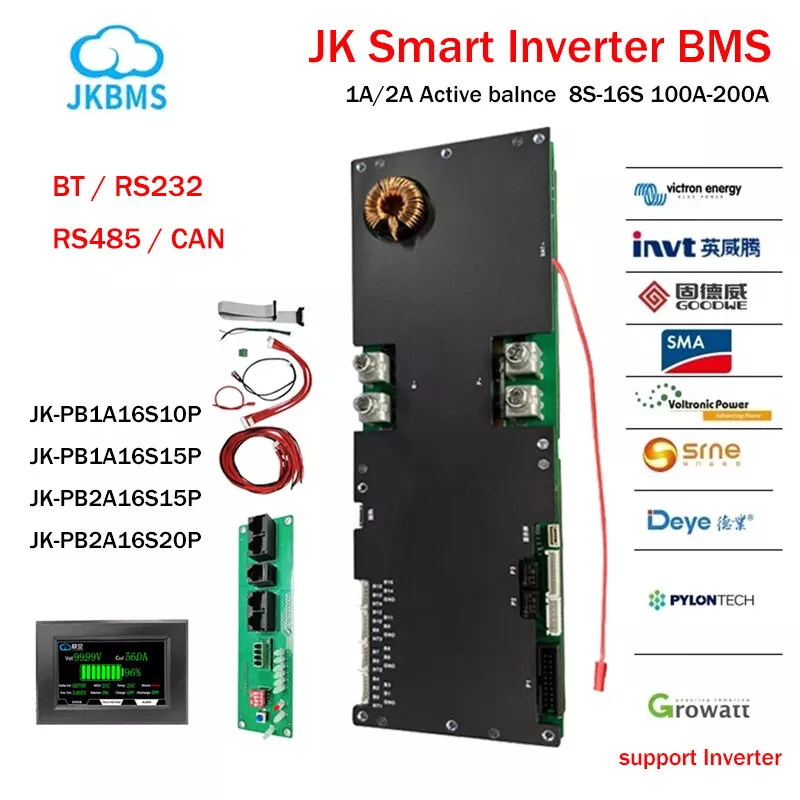
JK Inverter BMS 16S
Inverter BMS
JK-PB2A16S-15P
JK-PB2A16S-20P
Versions 14, 15, and 19 have been released, V19 offering better parallel State of Charge functionality.
This BMS is designed to be similar to most modern residential Low Voltage BMS from the major brands like Pylontech, EG4, and many more. It stands out only for the active balancing feature, and Bluetooth App support, these are both useful features, especially for the DIY community.
The software app is not the best, but once you learn how to use it, it does do a good job of managing the cells.
Some important hints about the JK App
1. Do not forget your password – It causes problems you dont want
2. When in advanced settings you must press OK for every individual change
3. There is no way to backup your configuration and settings.
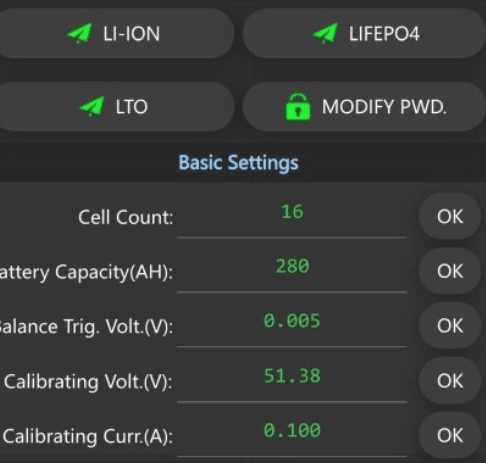
4. Once you have programmed a battery or it has been programmed by someone else. DO NOT PRESS any of the Profiles at the top, as show here in this image below, LI-ION, LIFEPO4, LTO and
5. If you do MODIFY PASSWORD MAKE IT EASY.
We use 123456 or 000000 (like victron)
JK 8s-20s
JK-B2A20S20P
When used with LiFePO4 it would support (25.4v-64v)
8 x 3.2v – 20 x 3.2v
It features a large 2A of balance current between the cells.
It is an active balance bms, which means it transfers energy from the highest cell to the lowest cell, if there is an imbalance.

JK BLUETOOTH CONNECTION
Download and install the JK BMS smartphone app, apple or android links below. This software will allow you to monitor and change settings and parameters on your BMS, this is the only app you will need in many cases

Here you can see the JK App displayed on a phone, showing the status page of a 280Ah, 51.2V (16s) battery. The battery is currently balancing its cells, which have recently reached around 99% State of Charge.
The red and blue indicators highlight the top and bottom cells currently undergoing active balancing. In this example, the top cell is at 3.430V and the lowest cell is at 3.377V. Although this shows the pack is not perfectly balanced, it’s a normal occurrence and nothing to be concerned about.
To understand why this isn’t problematic, consider that the battery consists of 16 individual cells connected in series. Over time, minor differences in each cell’s capacity and internal resistance are inevitable, even if the cells were initially well-matched. These small imbalances become more pronounced as the battery is deeply discharged.
Another way to think about it is this: If you routinely discharge the battery down to around 10% State of Charge and then recharge it by adding roughly 270Ah to a 300Ah pack, you’re more likely to notice cell imbalance. On the other hand, if you only discharge the battery to about 90% SOC, you’ll typically see much less variation among the cells.
The first password is will ask you for is for bluetooth which is 1234.
The settings password is for advanced configuration password, by default it is 123456. If you change this take note that it could lead to a very difficult time trying to reset it. So we usually recommend leaving it as default.


JK BMS Settings
Inside this app you will find many settings. Which you should know if you are building your own pack.
For our battery we use these parameters
Such as cell count = 16 (51.2v)
Capacity = 314ah or 306ah depending on the cell model.
We recommend these Balance settings
Balance Start Voltage – – 3.4V or 3.45V (This setting can be set anywhere from 3.37-3.45v)
The best setting is 3.45v for batteries that see high current charging (overpotential), and 3.4v for low current charging
JK BMS MONITOR SOFTWARE
Used mostly for Firmware Updates – Its a PC Windows App
Can also be used to monitor multiple batteries on a PC, which the Bluetooth App cannot do.
Download the JK BMS MONITOR SOFTWARE > Link

This software is for both monitoring and changing settings on JK BMS, however it also allows you to flash a new firmware onto your JK BMS (a bit like the operating system). This process is technical and so we have a warning written for your own benefit.

“HOW TO” – JK BMS Update the Firmware Video
JK BMS MONITOR allows you to flash a new firmware onto your JK BMS (a bit like the operating system). This process is technical and so we have a warning written for your own benefit.
WARNING!! – FIRWARE UPDATE – DO NOT DO THIS UNLESS YOU HAVE TO DO THIS – TO FIX SOMETHING BROKEN OR YOU NEED THE FEATURES. FIRMWARE UPDATES CAN FAIL and LEAVE YOUR BMS TOTALLY USELESS
To update the firmware you need an RS485 to USB adaptor. Such as the waveshare one linked here which works well, and is stocked by local Australian business which is great for Fast shipping if you are in a hurry.
We found this great HOW TO video by Grant Burton who resides in South Africa, but makes excellent high quality easy to follow videos, Subscribe and like his videos in appreciation.
Victron and JK BMS
Victron makes 2 different RJ45 Cables, Type A and Type B.
All JK BMS work with the Type B cable.
The side labeled ‘CAN-bus BMS’ plugs into the battery. The other side, labeled ‘VE.Can’ must be plugged into either the VE.Can port of the GX device, or the BMS-Can port.
Both port types (VE.Can and BMS-Can) on a GX Device can be configured for use with a CAN-bus BMS connected third party battery.
3. Pin-out
In some cases it might be needed to make the cable at the location. Find below the pin-outs. Make sure to very carefully test the cable after crimping it. Self-made cables are very often the causes of very hard to diagnose problems.
3.1 Type A
| Function | Victron VE.Can side | Battery side |
|---|---|---|
| GND | Pin 3 | Pin 6 |
| CAN-L | Pin 8 | Pin 5 |
| CAN-H | Pin 7 | Pin 4 |
3.2 Type B
| Function | Victron VE.Can side | Battery side |
|---|---|---|
| GND | Pin 3 | Pin 2 |
| CAN-L | Pin 8 | Pin 5 |
| CAN-H | Pin 7 | Pin 4 |
JK BMS FIRWARE DOWNLOAD
WARNING WARNING WARNING – YOU MUST BE 100% sure you have selected the correct firmware for your Hardware.
Thanks to Andy from OFFGRID GARAGE for hosting these files
JK-PB-2A16S20P
Hardware V14 – Rar Archives
Hardware V15 – Rar Archives
Hardware V19 –Rar Archives
You can also find all the otherr files here
All of these files are maintained by Andy from the offgrid garage, so please support Andy for his hard work and dedication.
Wiring the JK INVERTER BMS MODEL PB-2A16S20P
Step-by-Step Balance Lead Connections
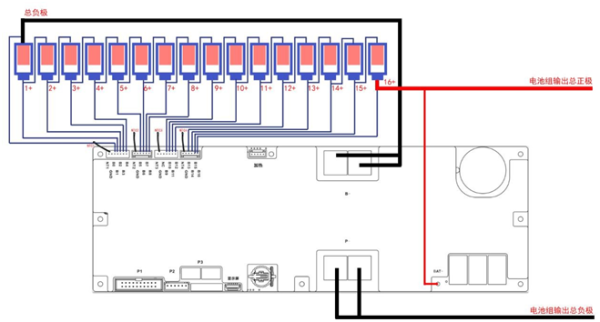
The JK PB-2A16S20P BMS comes with four balance harnesses for connecting to the 16-cell battery pack. Each harness has specific wire assignments that must be connected to the cells in the correct order. Here’s how to wire them:
1. Harness 1 (5 Red Wires) – Cells 1 to 4
- Wires: 5 red wires.
- Connection:
- Wire 1 (Red): Connect to the negative terminal of Cell 1 (this is your first cell).
- Wire 2 (Red): Connect to the positive terminal of Cell 1.
- Wire 3 (Red): Connect to the positive terminal of Cell 2.
- Wire 4 (Red): Connect to the positive terminal of Cell 3.
- Wire 5 (Red): Connect to the positive terminal of Cell 4.
- Note: Ensure that these wires are connected from the first negative terminal of Cell 1 through to the positive terminal of Cell 4.
2. Harness 2 (5 Wires) – Cells 5 to 8
- Wires: 4 red wires.
- Connection:
- Wire 1 (Red): Connect to the positive terminal of Cell 5.
- Wire 2 (Red): Connect to the positive terminal of Cell 6.
- Wire 3 (Red): Connect to the positive terminal of Cell 7.
- Wire 4 (Red): Connect to the positive terminal of Cell 8.
- Note: These wires should connect to Cells 5, 6, 7, and 8.
3. Harness 3 (5 Wires) – Cells 9 to 12
- Wires: 5 red wires – V14
Wires 4 red wires – v15 and v19 - (OLD MODEL v14 BMS) Warning: The first red wire on v14, skip the first red (closest to the black wire) in Harness 3 must NOT be connected to cell 9. This wire, if connected, will damage the BMS and cause malfunction. (void warranty)
- Connection: V15 & V19 (V14 has an additional wire on this 3rd Harness
- Wire 1 (Red): Connect to the positive terminal of Cell 9.
- Wire 2 (Red): Connect to the positive terminal of Cell 10.
- Wire 3 (Red): Connect to the positive terminal of Cell 11.
- Wire 4 (Red): Connect to the positive terminal of Cell 12.
4. Harness 4 (4 Wires) – Cells 13 to 16
- Wires: 4 wires.
- Connection:
- Wire 1 (Red): Connect to the positive terminal of Cell 13.
- Wire 2 (Red): Connect to the positive terminal of Cell 14.
- Wire 3 (Red): Connect to the positive terminal of Cell 15.
- Wire 4 (Red): Connect to the positive terminal of Cell 16.
- Note: These wires are for Cells 13, 14, 15, and 16.
Recap of Critical Wiring Points:
- Harness 1 connects to Cells 1 through 4.
- Harness 2 connects to Cells 5 through 8.
- Harness 3 connects to Cells 9 through 12, but do not connect the first red wire in this harness (closest to the black wire), as connecting it will damage the BMS.
- Harness 4 connects to Cells 13 through 16.
Important Warning (repeated for emphasis):
- The first red wire in Harness 3, which is closest to the black wires, must NOT be connected. Connecting this wire will cause serious damage to the BMS.
DO NOT connect the first red wire in Harness 3.
“Updating firmware can improve your device’s performance and or security, but it also carries risks. Ensure you are using the correct firmware version for your specific model, as installing incompatible firmware can permanently damage your device.
Its generally recommeneded to back up your previous firmware and take note of all your settings in the current BMS software
Before proceeding and follow the manufacturer’s instructions carefully. Avoid interrupting the update process, as power loss or disconnection during the update can render your device unusable. Only download firmware from trusted sources to prevent malware infection. Proceed with caution”
Update the Firmware Video
Generate New Password Video
Update password Video supplied by JK BMS
“Most users are reporting an inability to permanently change the password.”
This might eventually be solved in a future software update from JK BMS.